

Free Excel Automation Course for Beginners
Basics of Automation in Excel
 4.46
Beginner level
1.5 learning hrs
4.46
Beginner level
1.5 learning hrs
Learn Excel automation for free when repeated spreadsheet work is taking too much time, so functions, AI tools, PivotTables, and cleaner workflows become easier to apply in daily analysis and reporting routines at work now.
Instructor:
Madhur Singh



About this course
Repetitive spreadsheet work becomes easier to improve when you learn the right automation habits, and a free Excel automation course gives beginners that starting point. This course covers automation in Excel through functions, conditional formatting, AI tools, PivotTables, and cleaner spreadsheet workflows so learners can save time and reduce manual effort.
The course is especially useful for people searching for an Excel AI course, Excel automation course, or automation in Excel for beginners. It connects practical features with day-to-day analysis needs: cleaning data, applying rules, summarizing information, and using AI-supported steps where they make work faster. Use it before deeper Excel formulas, macros, VBA, Power Query, dashboards, business analysis, or office automation training.
Course outline
Introduction to Automation in Excel
Overview of automating tasks in Excel to improve efficiency and streamline workflows.
Using Functions for Automation
Utilizing Excel functions to automate calculations, data manipulations, and streamline repetitive tasks.
Conditional Formatting for Automation
Leveraging conditional formatting in Excel to automatically highlight and format cells based on specified conditions.
Automating Excel using AI tools
Exploring the integration of artificial intelligence tools to automate complex tasks and enhance data analysis in Excel.
PivotTables for Automation
Understanding the role of PivotTables in automating data summarization, analysis, and visualization for improved decision-making in Excel.
Get access to the complete curriculum once you enroll in the course
 4.46
4.46










What our learners enjoyed the most
Skill & tools
62% of learners found all the desired skills & tools
Our course instructor

Madhur Singh
Career Growth Expert
IT & Software Expert


Frequently Asked Questions
Will I receive a certificate upon completing this free course?
Is this course free?
What prerequisites are required to enrol in this Automation in Excel course?
You do not need any prior knowledge to enrol in this Automation in Excel course.
What will I learn in this Excel automation course?
How long does it take to complete this Automation in Excel course?
It is a 1.0 hour long course, but it is self-paced. Once you enrol, you can take your own time to complete the course.
Is this free Excel automation course for beginners?
Will I have lifetime access to the free course?
Yes, once you enrol in the course, you will have lifetime access to any of the Great Learning Academy’s free courses. You can log in and learn whenever you want to.
Does the course cover AI tools in Excel?
Will I get a certificate after completing this Automation in Excel course?
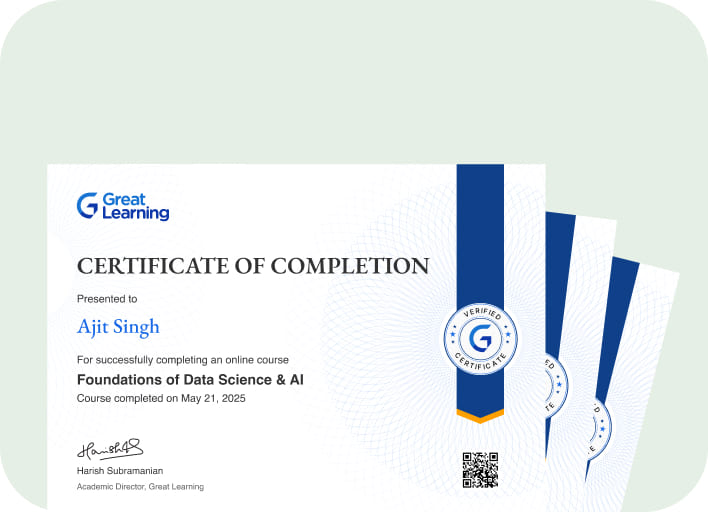
Yes, you will get a certificate of completion after completing all the modules and cracking the assessment.
Will I learn PivotTables for automation?
How much does this Automation in Excel course cost?
It is an entirely free course from Great Learning Academy.
Can this course help with office automation?
Is there any limit on how many times I can take this free course?
No. There is no limit. Once you enrol in the Automation in Excel course, you have lifetime access to it. So, you can log in anytime and learn it for free online.
Do I need advanced Excel knowledge?
Who is eligible to take this Automation in Excel course?
You do not need any prerequisites to take the course, so enroll today and learn it for free online.
What should I learn after Excel automation basics?
Who should take an automation in Excel course?

Recommended Free Management courses
-
FREE

-
FREE
-
FREE
-
FREE
-
FREE
-
FREE
2.5 hrs
-
FREE
-
FREE
2.5 hrs
 FREE
FREE






.jpg "Course thumbnail image")

Similar courses you might like
-
FREE
-
FREE
-
FREE
-
FREE
.jpg "Course thumbnail image")

.jpg "Course thumbnail image")

Related IT & Software Courses

-
McCombs School of Business at The University of Texas at Austin
Post Graduate Program in Cyber Security20 weeks · Online
Know More


Relevant Career Paths >



Other IT & Software tutorials for you
Basics of Automation in Excel
Automation in Excel refers to the use of various tools and features within Microsoft Excel to streamline repetitive tasks, reduce manual data entry, and enhance overall efficiency in data processing, analysis, and reporting. Excel, a widely used spreadsheet application, offers a plethora of automation capabilities that help users save time, minimize errors, and focus on more strategic activities. In this article, we'll explore the importance of automation in Excel, common automation techniques, and the benefits it brings to both individuals and businesses.
Why Automation in Excel Matters:
- Automation in Excel is essential because it transforms Excel from a simple data entry and calculation tool into a powerful automation and analysis platform. It allows users to perform complex tasks with minimal effort, ensuring accuracy and consistency. Here are some reasons why automation in Excel matters:
- Time-saving: Automation eliminates the need for manual data entry and repetitive tasks, allowing users to complete work faster. This extra time can be invested in more critical tasks, decision-making, and analysis.
- Error reduction: Human errors are common when working with large datasets and performing repetitive tasks. Automation reduces the risk of mistakes, ensuring data integrity and reliability.
- Consistency: Automation ensures that processes are executed consistently every time, maintaining uniformity in reports and analysis.
Common Automation Techniques in Excel:
- Macros: Excel macros are sets of recorded actions that can be played back to automate a series of tasks. Users can record their actions or write VBA (Visual Basic for Applications) code to create custom macros.
- Formulas and Functions: Excel provides a wide range of built-in functions and formulas to perform calculations, manipulate data, and automate various tasks. Examples include SUM, IF, VLOOKUP, and CONCATENATE.
- Data Validation: You can use data validation rules to control the type and format of data entered into cells, ensuring data accuracy.
- PivotTables: PivotTables are powerful tools for summarizing and analyzing large datasets. They can quickly generate reports and charts based on your data.
- Conditional Formatting: Conditional formatting automatically applies formatting rules to cells based on specific conditions, making it easier to spot trends and outliers in your data.
- Power Query: Excel's Power Query feature allows you to connect to external data sources, transform and shape data, and load it into Excel tables or PivotTables automatically.
Benefits of Automation in Excel:
- Improved Efficiency: Automation reduces manual effort, enabling users to complete tasks more quickly and allocate their time to higher-value activities.
- Enhanced Accuracy: Automation minimizes human errors, ensuring data accuracy and consistency in reports and analysis.
- Scalability: Excel automation allows users to handle larger datasets and more complex tasks, making it suitable for both small-scale projects and enterprise-level applications.
- Data Analysis: Automation tools like PivotTables, Power Query, and advanced formulas facilitate in-depth data analysis, helping businesses make data-driven decisions.
- Customization: Excel's automation capabilities are highly customizable, allowing users to create tailored solutions to meet their specific needs.
- Integration: Excel can be integrated with other Microsoft Office applications and third-party tools, enhancing its capabilities and interoperability.
In conclusion, automation in Excel is a valuable resource for individuals and businesses looking to streamline tasks, improve efficiency, and gain deeper insights from their data. By leveraging the various automation techniques and features offered by Excel, users can reduce manual effort, enhance accuracy, and focus on critical decision-making processes. As businesses continue to rely on data-driven insights, Excel's automation capabilities remain indispensable in today's data-centric world. Whether you're a novice or an experienced user, exploring and mastering Excel automation can significantly boost your productivity and effectiveness in handling data-related tasks.