Free Google Workspace Apps and Collaboration Course

Google Workspace Apps and Collaboration

Beginner level 3.0 learning hrs

Google Workspace collaboration starts with giving each teammate the right access to a shared document. Start this free Google Workspace course to learn who on your team should view, comment on, or edit that file.
Key Highlights

Get free course content

Master in-demand skills & tools

Test your skills with quizzes

About this course

A shared document is the starting point for learning Google Workspace collaboration in this free Google Workspace course. If you've used a few apps on your own, you can follow how they work together when a team needs to review and revise the same draft. With Google Drive sharing, you'll see how a permission setting lets a teammate review a file or edit it. In Google Docs, comments and suggestions let you discuss a proposed change and decide whether it belongs in the draft.


The same project might call for a meeting or a way to collect feedback. Use the Calendar and Meet lessons to see how you can arrange a recurring call across time zones. Google Forms gives you a way to ask the group for input, and the Sheets lessons show how to summarize responses with formulas or a pivot table. Together, these examples help you choose an app based on what you need from the team.

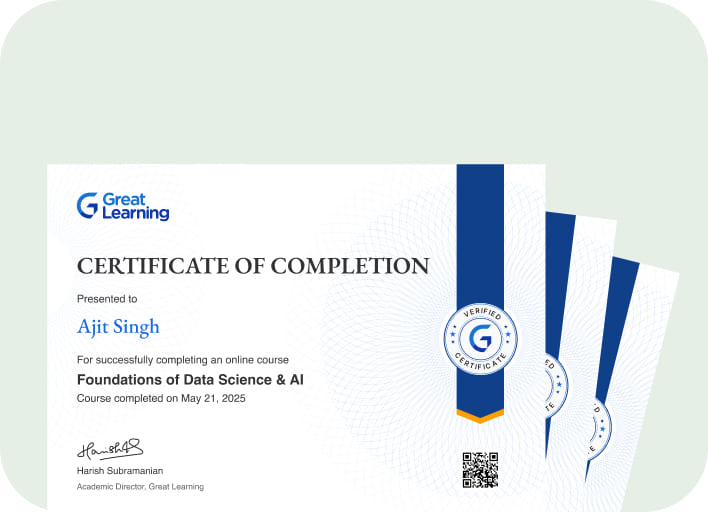
Stand out with an industry-recognized certificate

10,000+ certificates claimed, get yours today!

Get noticed by top recruiters

Share on professional channels

Globally recognised

Land your dream job

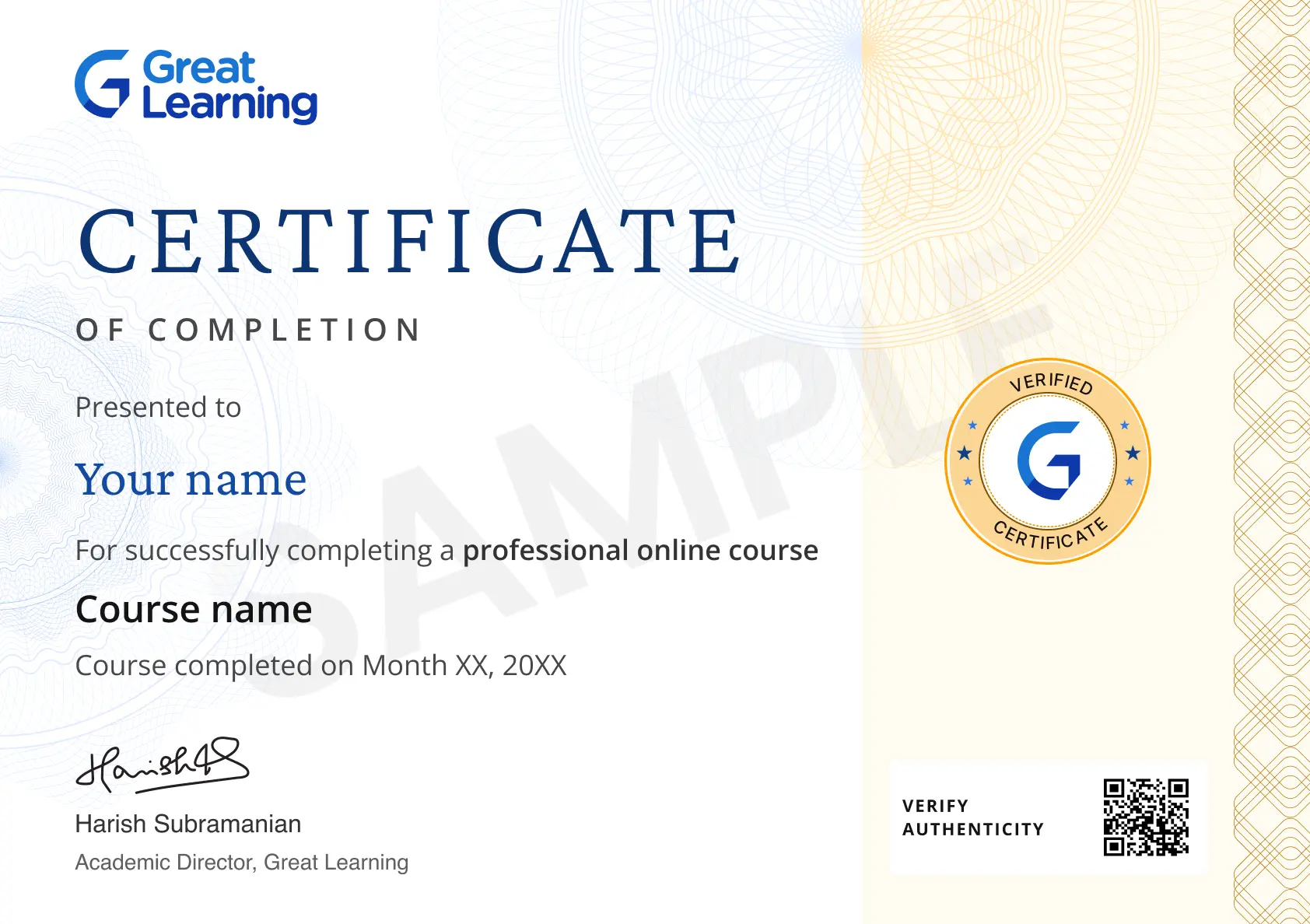
Certificate Image

Course outline

Getting Started with Google Workspace Fundamentals

In this module, you'll learn the purpose of Google Workspace, the core apps and their uses, account setup, the Workspace interface, sharing and permission levels, device syncing, and the Marketplace for add-ons.

Mastering Gmail for Professional Communication

In this module, you'll learn the Gmail interface, composing and formatting emails, labels and filters, attachments, scheduling and snoozing messages, Smart Compose, signatures, groups, and email security best practices.

Organizing Files and Collaboration in Google Drive

In this module, you'll learn Drive's storage structure, folder organization, file sharing and permissions, version history, real-time commenting, Shared Drives, offline access, and Drive security settings.

Creating Professional Documents with Google Docs

In this module, you'll learn Google Docs templates, text formatting, tables and images, comments and suggestions, real-time collaboration, voice typing, add-ons, and AI-assisted writing tools.

Building Data Tools with Google Sheets

In this module, you'll learn Google Sheets navigation, core formulas, conditional formatting, charts, pivot tables, data validation, filter views, and the Explore panel for quick insights.

Designing Impactful Presentations with Google Slides

In this module, you'll learn Google Slides themes and layouts, master slides, transitions and animations, embedding media, speaker notes, live presenting, and the Explore feature for design ideas.

Scheduling and Meetings with Calendar and Meet

In this module, you'll learn Google Calendar event creation, recurring events, calendar sharing, scheduling across time zones, appointment slots, Google Meet setup, breakout rooms, and meeting etiquette.

Driving Team Collaboration with Forms, Chat, and Sites

In this module, you'll learn building surveys with Google Forms, analyzing form responses, Google Chat and Spaces, Google Sites creation, embedding Workspace content, and Workspace admin console basics.

Get access to the complete curriculum once you enroll in the course

Google Workspace Apps and Collaboration

3.0 Hours

Beginner

Get free course content

Master in-demand skills & tools

Test your skills with quizzes

Trusted by 10 Million+ Learners globally

Frequently Asked Questions

What will I learn in the Google Workspace Apps and Collaboration Course?

You learn Gmail, Drive, Docs, Sheets, Slides, Calendar, Meet, Forms, Chat, and Sites, with sharing, permissions, files, data, meetings, and team workflows This keeps shared work easier to follow.

Is the Google Workspace Apps and Collaboration Course beginner-friendly?

Yes. It starts with Workspace purpose, account setup, the interface, sharing levels, syncing, and add-ons before moving into app tasks and collaboration This keeps shared work easier to follow.

How does the course cover Gmail for work?

You practice messages, labels, filters, attachments, scheduling, snoozing, Smart Compose, signatures, groups, and email-security habits for organized communication This keeps shared work easier to follow.

What can I learn about Google Drive sharing?

The Drive lessons cover storage, folders, permissions, version history, comments, Shared Drives, offline access, and security settings for collaborative files This keeps shared work easier to follow.

Does this course teach collaborative Google Docs work?

Yes. You study templates, formatting, tables, images, comments, suggestions, real-time editing, voice typing, add-ons, and AI-assisted writing in shared documents This keeps shared work easier to follow.

Which Google Sheets skills are included?

You learn navigation, formulas, conditional formatting, charts, pivot tables, data validation, filter views, and Explore for quick insights in shared data This keeps shared work easier to follow.

Will I learn to create Google Slides presentations?

The Slides module covers themes, layouts, master slides, transitions, animations, media, speaker notes, live presenting, and Explore ideas for visual design This keeps shared work easier to follow.

How are Calendar and Meet used for scheduling?

You create events and recurring meetings, share calendars, work across time zones, use appointment slots, set up Meet, manage breakout rooms, and apply etiquette This keeps shared work easier to follow.

What do Forms, Chat, and Sites add to the course?

You build surveys, analyze responses, use Chat and Spaces, create Sites, embed Workspace content, and review basic admin-console ideas for team updates This keeps shared work easier to follow.

What should I practice after completing this Workspace course?

Choose a real project workflow with a shared Drive folder, a Sheet, a Doc, and a meeting calendar, then test permissions, comments, version history, and handoffs This keeps shared work easier to follow.

Subscribe to Academy Pro+ & get exclusive features

$29/month

No credit card required

Learn from 40+ Pro courses

Access 500+ certificates for free

700+ Practice exercises & guided projects

Prep with AI mock interviews & resume builder

Related IT & Software Courses

50% Average salary hike
Explore degree and certificate programs from world-class universities that take your career forward.
Personalized Recommendations
checkmark icon
Placement assistance
checkmark icon
Personalized mentorship
checkmark icon
Detailed curriculum
checkmark icon
Learn from world-class faculties
  • Personalized Recommendations

    Placement assistance

    Personalized mentorship

    Detailed curriculum

    Learn from world-class faculties

    50% Average salary hike
  • Know More

Enroll For Free