
How often do you find yourself handling small, repetitive tasks on your computer that quietly consume valuable time?
More often than we realize, right?
However, with tools like Claude, such tasks can be automated by simply describing what you want instead of executing every step manually.
In this blog, we examine how Claude Code enables task automation, the range of activities it can perform, and how it contributes to more efficient and streamlined computing experiences.
What is Claude Code?
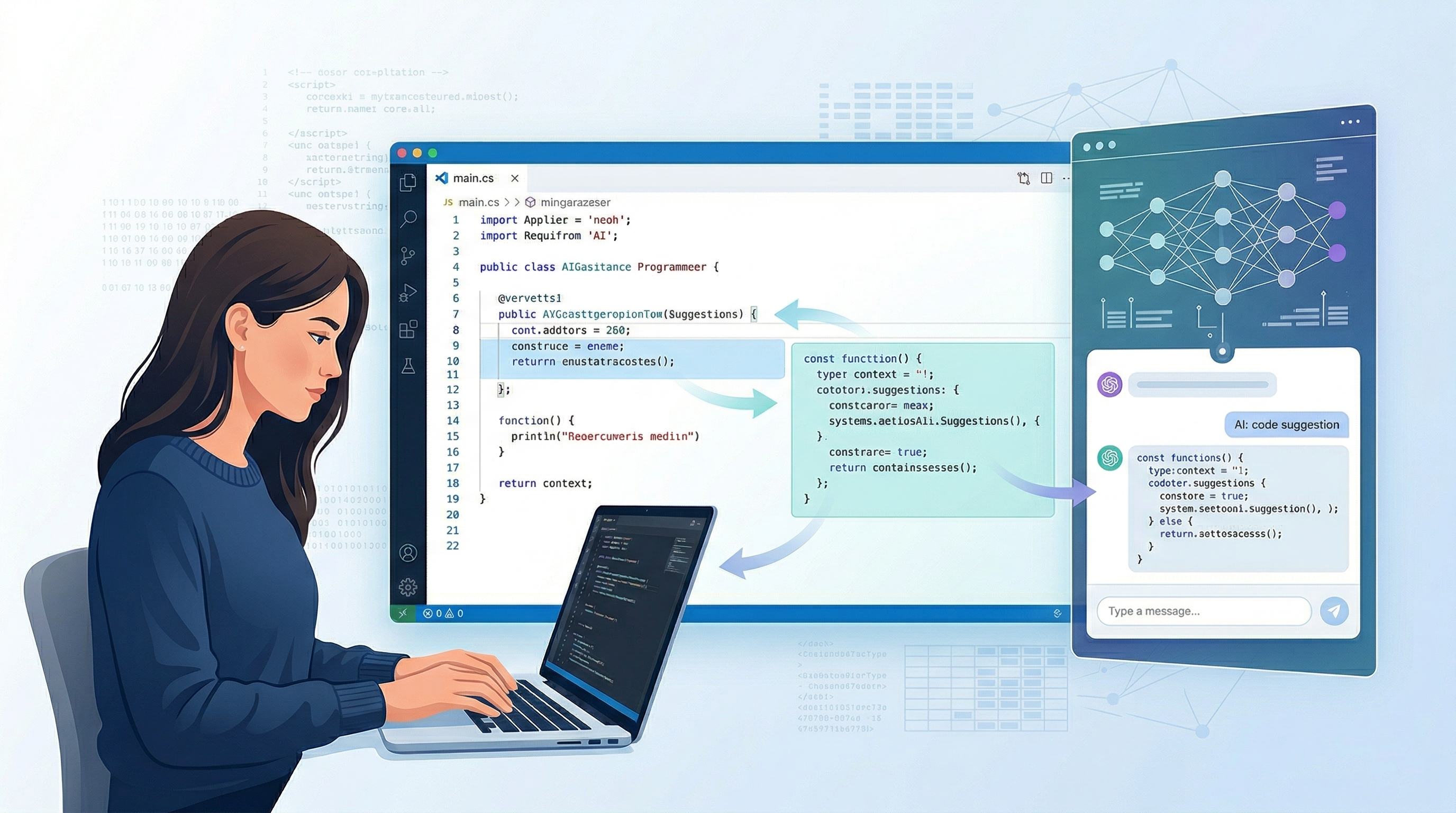
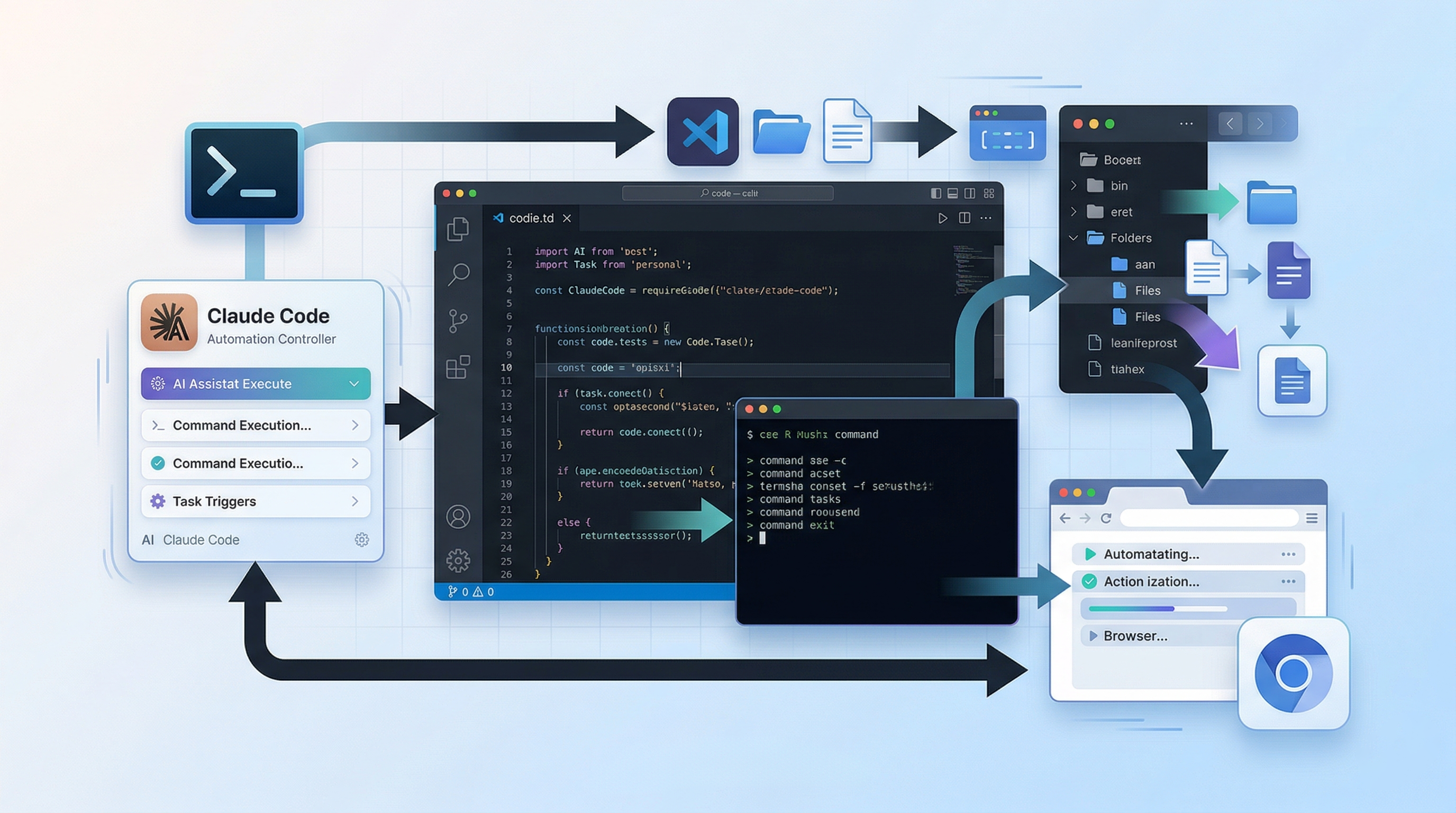
Claude Code is a command-line interface (CLI) tool that acts as an agentic extension of the Claude 3.5 Sonnet model. Unlike standard web-based interfaces, Claude Code lives directly within your development environment.
It is designed to understand the context of your local files, execute terminal commands, and manage git operations autonomously but under human supervision.
It effectively serves as a "coworker" that can navigate your computer’s file system to solve problems, rather than just suggesting snippets of code in a browser window.
Key Functionalities:
The tool is built around several core capabilities that distinguish it from traditional IDE extensions:
- System and File Access: It can read, write, and create files across your directory structure, allowing it to perform large-scale refactors or complex data migrations.
- Terminal Execution: It has the authority to run shell commands, which means it can install dependencies, run build scripts, and execute test suites to verify its own work.
- Git Integration: It can check git status, stage changes, and even draft commit messages that accurately reflect the logic of the modifications it has made.
- Contextual Awareness: By indexing your local environment, it understands the relationships between different files and modules, ensuring that its suggestions are technically sound within your specific project architecture.
How Does Claude Code Work?
The operational logic of Claude Code follows a "Agentic Loop." When a user provides a prompt, the tool does not simply generate text; it initiates a cycle of interpretation, action, and verification.
- Prompt Interpretation: The AI analyzes the user's natural language request to identify the goal.
- Planning: It breaks down the goal into a sequence of actionable steps, such as "Read file X," "Identify the bug," and "Run the test script."
- Action & Execution: Using its integration with the terminal and APIs, it executes these steps. If a task requires searching for information, it may use web-search capabilities to find documentation or libraries.
- Self-Correction: If a command fails, for instance, if a test returns an error, the agent analyzes the output and adjusts its plan in real-time. This mirrors how Clawdbot uses AI agents to resolve tasks by iterating until the objective is met.
- Safety and Permission Handling- Automation on a local machine carries inherent risks. Claude Code addresses this through a robust safety layer. It operates on a "human-in-the-loop" model where critical actions, such as executing a shell command or writing to a file, require explicit user approval. This ensures that the user remains the ultimate authority, preventing the AI from making unauthorized system changes.
If you need a visual introduction to these concepts, watching the Beginner's Guide to Claude AI is highly recommended.
For professionals looking to move beyond merely utilizing tools like Claude Code to actually architecting them, the
JHU Certificate Program in Agentic AI offers a structured pathway. This 16-week online program from Johns Hopkins University focuses explicitly on the foundational logic driving modern autonomous systems.
Certificate Program in Agentic AI
Learn the architecture of intelligent agentic systems. Build agents that perceive, plan, learn, and act using Python-based projects and cutting-edge agentic architectures.
By engaging in hands-on Python projects to build a "Smart Data Processing Agent" and an "Automated Research Agent," participants develop practical skills in multi-agent orchestration and symbolic reasoning.
This comprehensive approach ensures learners can successfully design systems that transition from simple conversational models to functional, secure task executors.
Step-by-Step Guide to Automating Tasks with Claude Code
Imagine having a tireless assistant living right inside your computer. It can organize messy student download folders, write grading scripts, or fix your code autonomously. That is what Claude Code, an AI coding agent that runs directly in your command line.
Normally, this requires a paid monthly subscription. But today, we are going to show you 100% free workaround using community tools that redirect Claude's brain to free AI models. Let’s get your autonomous assistant set up!
Before starting, you can also explore the Introduction to Claude free course to understand the basic interface.
Introduction to Claude for Beginners
Enrol in this free Claude course to explore AI Assistants, prompt engineering, and Claude 2 API. Get hands-on experience with Claude’s functionalities and apply them to real-world projects.
Prerequisites
- Node.js (LTS Version): The engine that runs AI tools on your PC.
- Git for Windows: Claude Code uses this to run commands. During installation, just keep clicking "Next" to accept all defaults.
- OpenRouter Account: To get your free API key (supports Gemini, Llama, and more).
- Command Prompt Windows: One to run the "Engine" and one to "Talk" to the AI.
Step 1: Claim Your Free AI API Key
To power our assistant without paying Anthropic's fees, we will use OpenRouter, a platform that hosts dozens of free AI models.
- Go to OpenRouter.ai and click "Sign Up" (you can use your Google account).
- Once logged in, navigate to the API Keys page.
- Click the "Create Key" button.
- Name it, like "Claude Code Free", and click Create.
- Copy the key immediately (it will start with sk-or-v1-...).
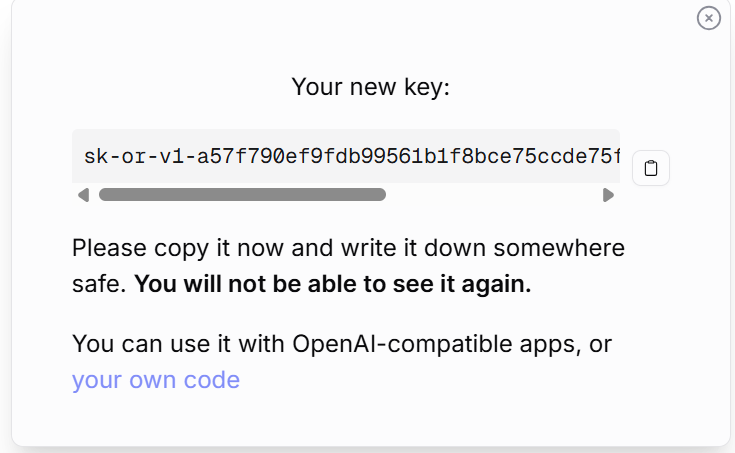
- Paste it into a temporary notepad document to save this key.

Step 2: Install Claude Code & The Router
Now we will use your computer's Terminal (Mac) or PowerShell (Windows) to install the official app and the community "translator" tool.
1. Open your command line:
-Mac Users: Press Command + Space, type Terminal, and hit Enter.
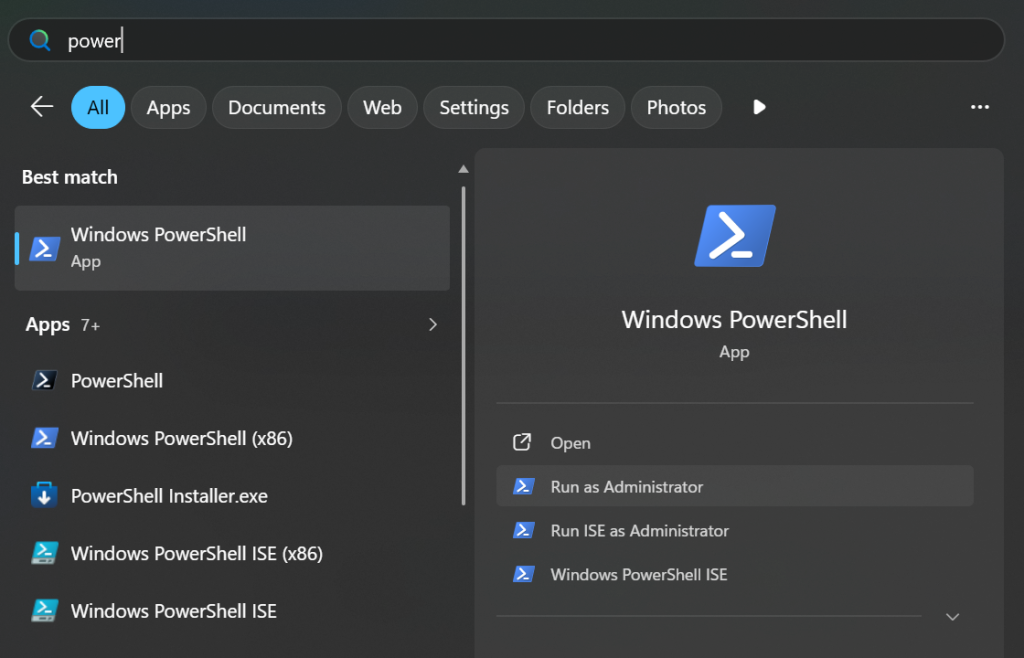
-Windows Users: Press the Windows Key, type PowerShell, right-click it, and select "Run as Administrator".
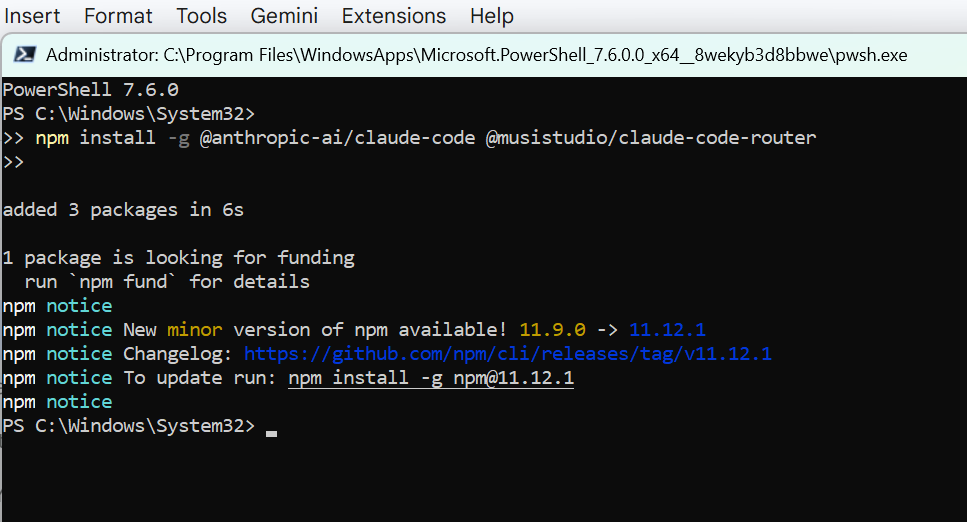
2. Copy and paste the following command exactly as written, then press Enter:
npm install -g @anthropic-ai/claude-code @musistudio/claude-code-router3. Wait for the loading bars to finish. This installs both the official Claude Code app and the claude-code-router package.
Step 3: Create Your Configuration Folders
We need to create a hidden folder on your computer where the AI router will look for its instructions.
- For Mac/Linux Users: Run this command in your Terminal:
mkdir -p ~/.claude-code-router ~/.claude- For Windows Users: Let's create this folder visually!
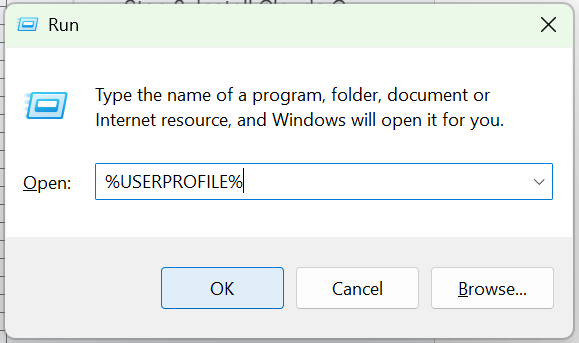
- Press the Windows Key + R on your keyboard to open the "Run" box.
- Type %USERPROFILE% and press Enter. This opens your main user folder (e.g., C:\Users\YourName).
- Right-click on any empty white space inside this folder.
- Click New > Folder, name this new folder: .claude-code-router (Make sure you include the period at the very beginning!) and press Enter.
Step 4: Write the Configuration File
Now we tell the router which free models to use. We will use Google's lightning-fast Gemini 2.0 Flash model, which OpenRouter provides for free.
- Open the Notepad app on your Windows computer.
- Copy the exact code block below and paste it into your blank Notepad document:
{
  "LOG": true,
  "PORT": 3456,
  "API_TIMEOUT_MS": 600000,
  "Providers": [
    {
      "name": "openrouter",
      "api_base_url": "https://openrouter.ai/api/v1",
      "api_key": "$OPENROUTER_API_KEY",
      "models": [
        "google/gemini-2.0-flash-exp:free"
      ],
      "transformer": { "use": ["openrouter"] }
    }
  ],
  "Router": {
    "default": "openrouter,google/gemini-2.0-flash-exp:free"
  }
}- Go to File > Save As.
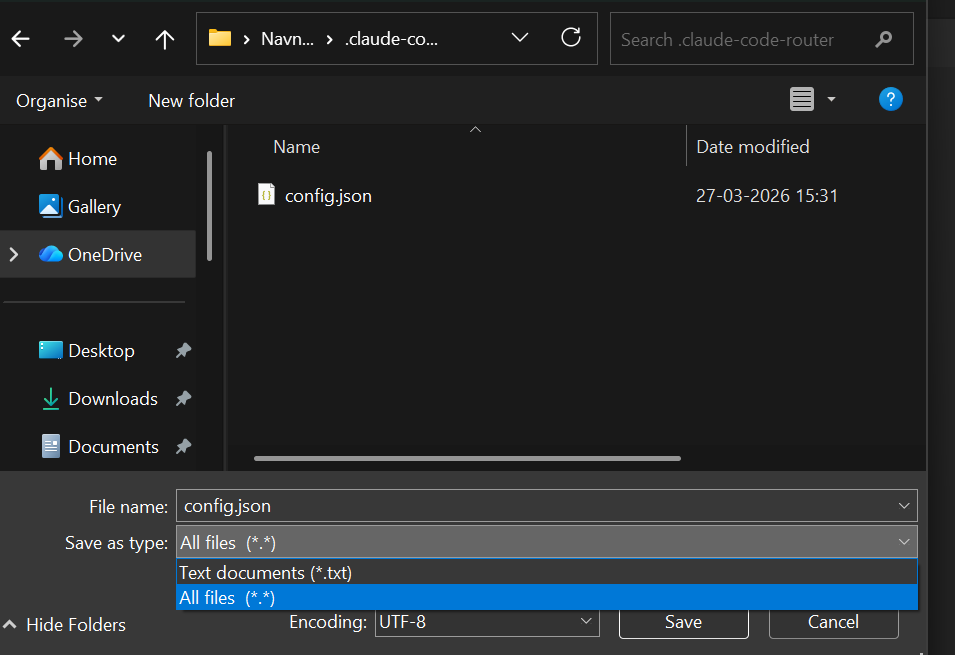
- In the left-hand menu of the save window, find your main User folder, and double-click the .claude-code-router folder you just created in Step 3 to open it.
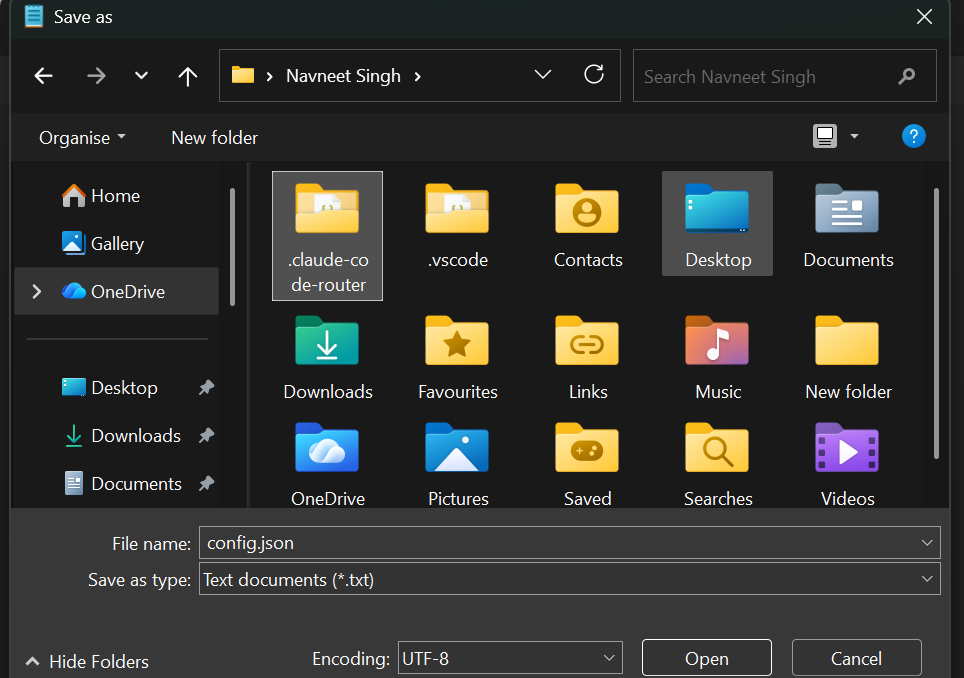
- Change the "Save as type" dropdown at the bottom from "Text Documents (.txt)" to "All Files (.*)".
- Name the file exactly: config.json
- Click Save.
Crucial Note: Leave the text "OPENROUTER_API_KEY" exactly as it is written in the code above. Do not paste your actual OpenRouter key into this Notepad file.
We will secure your real key in the next step!
Step 5: Securely Set Your API Key
Now we need to take that OpenRouter key you saved in Step 1 and inject it securely into your computer. This allows our router to find your key without leaving it exposed in standard text files.
For Mac Users:
-Open your Terminal.
-Copy the command below, but replace YOUR_KEY_HERE with your actual OpenRouter key (make sure you keep the quote marks!):
echo 'export OPENROUTER_API_KEY="YOUR_KEY_HERE"' >> ~/.zshrcPress Enter.
Finally, run this command to lock in the changes immediately: source ~/.zshrc
For Windows Users:
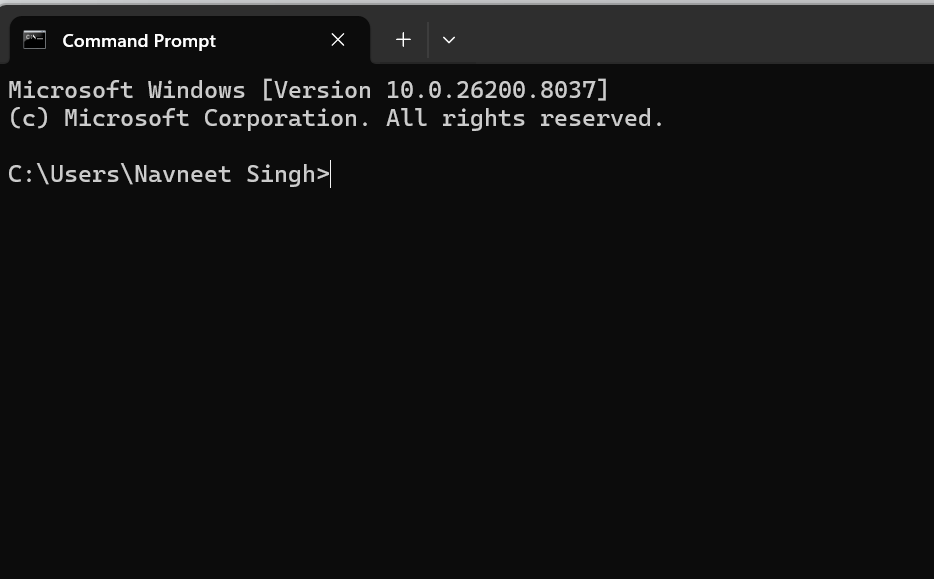
- Click your Windows Start button, type cmd, and open the standard Command Prompt app.
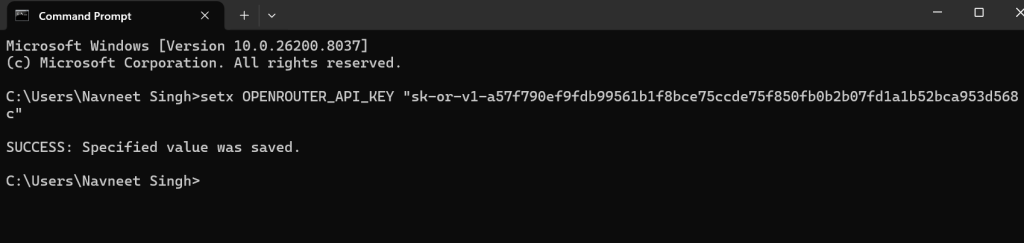
- Copy the command below, but replace YOUR_KEY_HERE with your actual OpenRouter key (make sure you keep the quote marks around your key!):
setx OPENROUTER_API_KEY "YOUR_KEY_HERE"- Paste that into your Command Prompt and press Enter.
- You should see a message pop up that says "SUCCESS: Specified value was saved."
- CRITICAL STEP: Close the Command Prompt window completely. Your computer will not recognize the new key until you open a fresh window in the next step!
Step 6: The Daily Workflow (Bringing the AI to Life)
To use your free AI assistant, you must always run two separate command windows at the same time.
Part 1: Start
- Open a fresh Command Prompt (Windows) or Terminal (Mac).
- Type the following and press Enter:
ccr start- What to expect: You will see a line that says: Loaded JSON config from: C:\Users\...\config.json.

- Important: The window will then look like it has stopped moving. This is normal! It means the code is running silently in the background. Do not close this window. Just minimize it.
Part 2: Start
1. Open a second, separate Command Prompt or Terminal window.
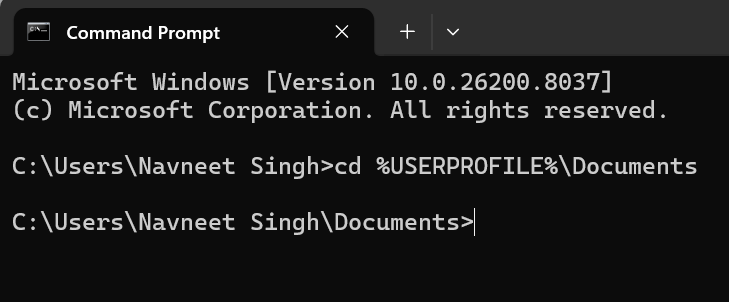
2. Navigate to the folder where you want the AI to work (for example, your Documents): Windows: cd %USERPROFILE%\Documents, Mac: cd ~/Documents
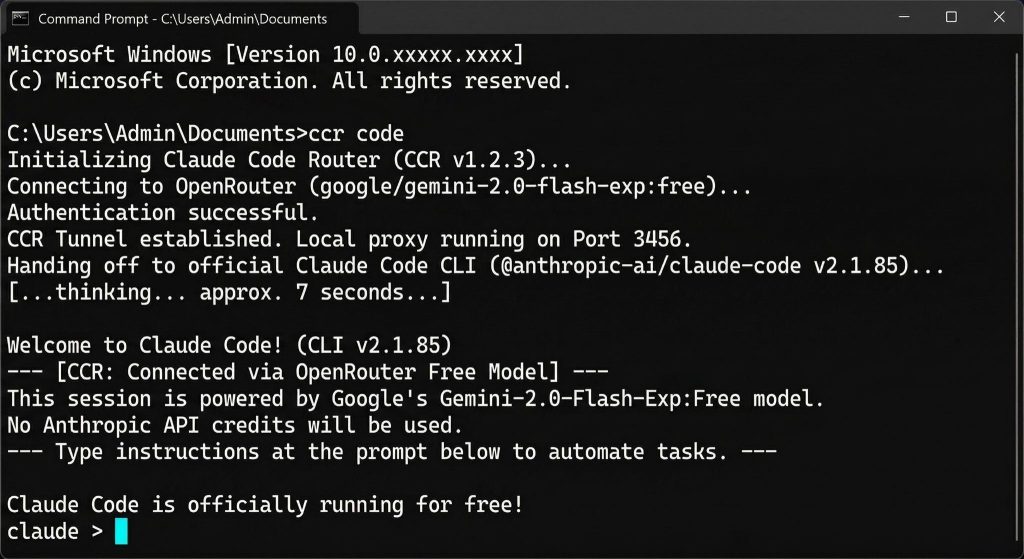
3. Launch the AI interface by typing:
ccr code4. Press Enter. Wait about 5–10 seconds. You will see a welcome message and a prompt that looks like claude >. You are now officially using Claude Code for free!
Your First Automation Test
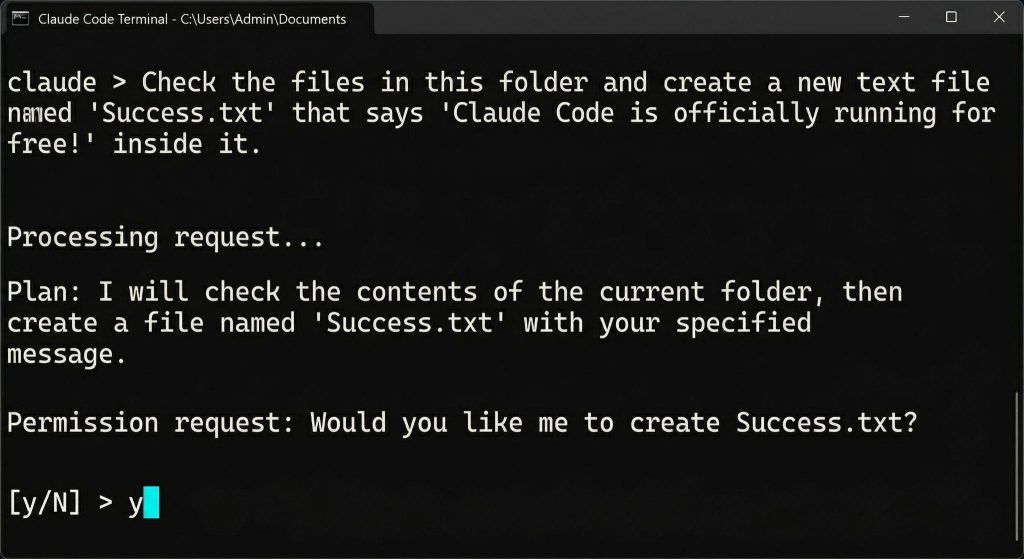
Once the claude > prompt appears in your second window, let’s give it its first job. Type this command and hit Enter:
"Check the files in this folder and create a new text file named 'Success.txt' that says 'Claude Code is officially running for free!' inside it."
Result:
- Execution: Claude will analyze your request and explain what it’s about.
- Permission: It will ask, "Would you like me to create Success.txt?" Type y and hit Enter.
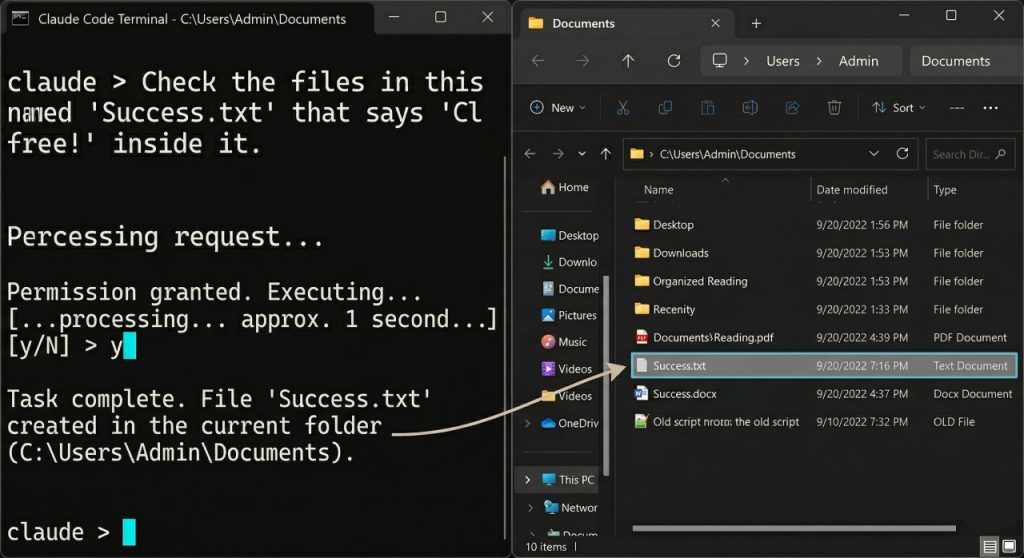
- The Result: Claude will confirm the file is created. Check your Documents folder, you’ll find your new file there!
Pro-Tips for Windows Users
Since Windows can be tricky, include these three tips at the bottom of your post to make it truly "Ultimate."
- The "Bash Not Found" Fix: If Claude says it can't find Git-Bash, run this command in your terminal as an Administrator:
setx CLAUDE_CODE_GIT_BASH_PATH "C:\Program Files\Git\bin\bash.exe" /M- The "Command Not Recognized" Fix: If ccr or claude won't run, close all terminal windows and open a brand new one. Windows needs a "refresh" to see newly installed tools.
- Check Your Key: If you get an "Unauthorized" error, re-run Step 5 to ensure your OpenRouter API key was saved correctly.
Other Types of Tasks Claude Code Can Automate
1. Development Tasks: The system effortlessly handles writing and debugging complex code, completely automating testing workflows and generating repetitive setup scripts, which directly showcase the incredible AI applications in software development.
2. Data Processing: It excels at parsing massive CSV and JSON files automatically, executing complex data cleaning pipelines, and structuring unstructured text into organized formats without requiring you to use heavy spreadsheet applications.
3. System Monitoring and Maintenance: Claude Code can proactively monitor system performance, track resource usage, and automate routine maintenance tasks such as clearing cache, managing logs, and identifying unnecessary background processes. This reduces manual intervention and helps maintain optimal system health over time.
4. Web and API Automation: It can interact with web platforms and APIs to automate tasks like fetching data from websites, submitting forms, integrating third-party services, and syncing information across applications. This enables users to build powerful automation workflows without manually handling multiple tools or interfaces.
If you are a business leader aiming to leverage these capabilities, the AI Agents for Business Applications online course by Texas McCombs is an exceptional choice.
PG Program in AI Agents for Business Applications
This program focuses on applying Agentic AI to solve business problems, improve operational efficiency, and drive innovation. Learn to build AI agents using Generative AI, Large Language Models, and other advanced tools.
This program helps you learn how to identify, design, and implement AI agent solutions that drive significant organizational efficiency. You will discover practical strategies to automate complex business workflows, enhance operational decision-making, and safely and securely lead enterprise-wide technical transformations.
Benefits of Using Claude Code
- Saves Time On Repetitive Tasks: It drastically cuts down the hours spent manually typing standard commands, allowing you to instantly generate files, folders, and basic code templates in mere seconds.
- Reduces Manual Errors: By relying on a highly precise machine to execute complex syntax, you completely eliminate the minor typographical errors that often crash software systems and cause massive frustration.
- Boosts Productivity: Acting as a brilliant digital partner, it heavily supports AI and automation to improve employee productivity by taking over the boring chores so you can focus entirely on strategic thinking.
- Makes Automation Accessible: It completely removes the need for deep, expert-level coding knowledge, allowing regular professionals to build custom automations simply by typing plain English instructions into their computer terminal:
To understand the broader economic impact of these productivity gains, watching the highly detailed Generative AI Explained: An Overview of LLMs and Their Business Impact video will provide invaluable industry context.
Best Practices for Effective Automation
While these tools are incredibly powerful, they must be used responsibly to prevent accidental data loss or system errors. Learning how developers adapt to generative AI safely is crucial for long-term success.
- Write Clear and Specific Prompts: You must always give the system exact, highly detailed instructions, leaving absolutely zero room for vague interpretations that could lead the AI to modify the wrong system files.
- Test Automation in Safe Environments: You should consistently run new, unverified scripts in isolated test folders first, ensuring that any unexpected mistakes do not permanently corrupt your important, live working directories.
- Review Generated Code Before Execution: You must carefully read every single line of code the assistant proposes before hitting the confirm button, ensuring the system strictly follows your intended technical logic.
If you are looking to master the creation of these systems yourself, taking the Building Intelligent AI Agents free course will give you a fantastic technical overview. Afterwards, you can explore a variety of exciting project ideas to build your portfolio.
Conclusion
By setting up Claude Code through the free routing methods detailed above, you can instantly eliminate tedious system chores, streamline complex file handling, and significantly accelerate your software development lifecycle. However, the true power of this technology relies entirely on how well you guide it.
By combining these advanced automation tools with strict human oversight and clear strategic intent, you can transform your regular computer into an incredibly powerful, hyper-efficient digital workstation.