
- What Is Microsoft Copilot?
- Use Microsoft Copilot for Daily Office Work
- How Does Microsoft Copilot Help With Email?
- How Does Microsoft Copilot Help With Meetings?
- How Does Microsoft Copilot Help With Word Documents?
- How Does Microsoft Copilot Help With Excel?
- How Does Microsoft Copilot Help With PowerPoint?
- How Does Microsoft Copilot Help With Browser-Based Work?
- What Makes a Good Microsoft Copilot Prompt?
- Best Ways to Use Microsoft Copilot at Work
- Best Practices for Using Microsoft Copilot at Work
- Conclusion
Microsoft Copilot helps professionals complete daily office work faster by drafting emails, summarizing meetings, analyzing spreadsheets, creating presentations, and organizing information. The best way to use Microsoft Copilot is to give clear instructions, ask for a specific output, review the response, and refine it before using it at work.
Modern office work often happens across email, meetings, documents, spreadsheets, chats, browsers, and presentations. Copilot supports these workflows by working inside Microsoft tools such as Word, Excel, PowerPoint, Outlook, Teams, and Edge. Some of the best uses for Microsoft Copilot include writing first drafts, summarizing long conversations, creating meeting recaps, finding spreadsheet insights, and preparing presentations.
Microsoft Copilot Course for Agentic Workflows
Master agentic workflows with this Microsoft Copilot Course. Learn to build AI-powered automation, streamline business tasks, and create intelligent workflows for real-world productivity.
What Is Microsoft Copilot?
Microsoft Copilot is an AI assistant that helps users write, summarize, analyze, search, and create content using natural language prompts. Instead of starting from a blank page or manually reviewing large amounts of information, you type what you need, and Copilot gives you a draft, a summary, an answer, a chart idea, an email, or an action list.
Copilot is useful for daily office work because it reduces repetitive tasks. It helps with first drafts, meeting notes, data review, research summaries, and communication. It does not replace human judgment. You still need to check facts, edit tone, and approve the final version.
Use Microsoft Copilot for Daily Office Work
You should use Microsoft Copilot for repetitive or time-consuming tasks. These include long email threads, meeting summaries, weekly updates, spreadsheet analysis, slide creation, and quick research.
The table below shows some of the best ways to use Microsoft Copilot in daily office work.
| Daily Office Task | How Microsoft Copilot Helps | Example Prompt |
|---|---|---|
| Email Management |
|
“Summarize this email thread and write a professional reply with the next steps.” |
| Meeting Follow-Ups |
|
“Summarize this meeting and list the action items with owners and due dates.” |
| Document Drafting |
|
“Write a one-page project update using these notes in a professional tone.” |
| Spreadsheet Review |
|
“Find the top three changes in this sales sheet and explain what changed.” |
| Presentation Creation |
|
“Create a six-slide presentation from this project brief for a leadership review.” |
| Web Research |
|
“Summarize this page and list the points most relevant for my report.” |
Copilot works best when the prompt includes context, task, format, tone, and limits. A vague prompt gives a weak answer. A specific prompt gives an output that is easier to edit and use.
How Does Microsoft Copilot Help With Email?
Email is one of the easiest places to start using Copilot. Many office workers spend time reading long threads, drafting replies, and following up with teams or clients. Copilot helps by summarizing the conversation, identifying open questions, and drafting a response.
For example, you might open a long client thread and ask:
“Summarize this email thread in five complete sentences. Identify the decision needed, the person responsible, and a polite response I should send.”
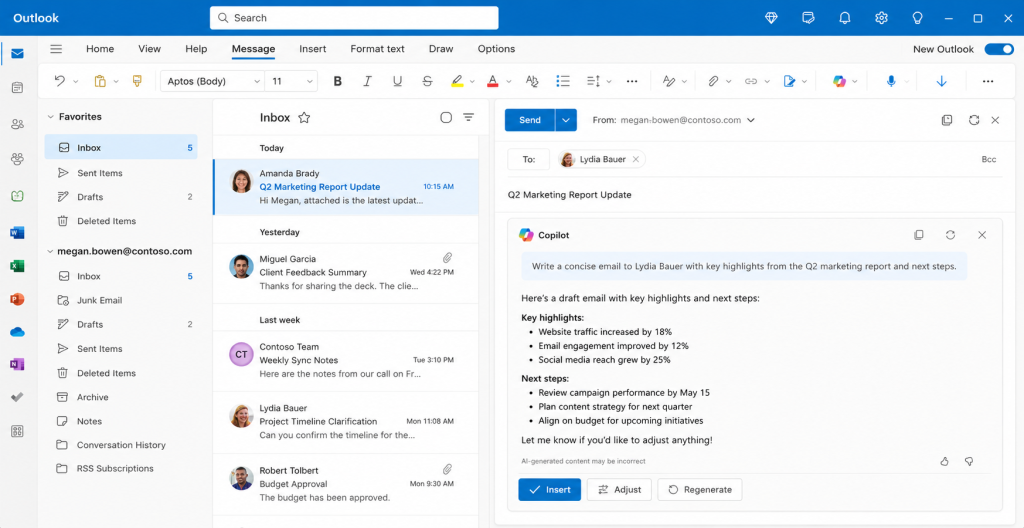
This prompt gives Copilot a clear task and a useful format. It also tells Copilot to write in complete sentences, which makes the output easier to reuse.
Before sending the email, you should check:
- The names are correct.
- The dates and deadlines are accurate.
- The attachments are included.
- The tone matches the relationship.
- The reply does not promise anything you have not confirmed.
Email support is one of the best uses for Microsoft Copilot because it saves time without changing your core workflow. You still review the final message, but Copilot helps you reach a clear draft faster.
How Does Microsoft Copilot Help With Meetings?
Meetings often create extra work after the call ends. Someone needs to write a summary, capture decisions, assign action items, and remind people about deadlines. Copilot helps turn meeting content into a structured recap.
A useful meeting prompt is:
“Summarize this meeting in four sections. Include key discussion points, decisions made, open questions, and action items.”
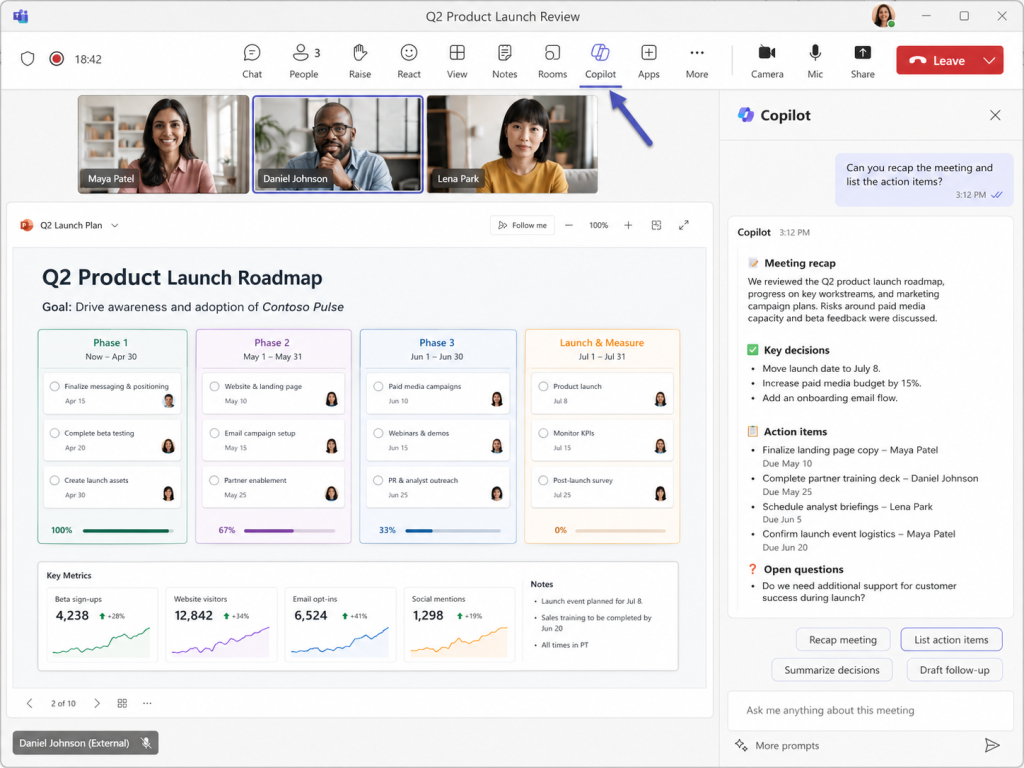
This format works well for project reviews, sales calls, team standups, hiring discussions, and leadership meetings. One of the best ways to use Microsoft Copilot is to turn every important meeting into a clean follow-up message with owners and deadlines.
You should review every meeting recap before sharing it. Check whether Copilot captured the right decision, assigned the right owner, and understood the business context.
How Does Microsoft Copilot Help With Word Documents?
Copilot helps you move from rough notes to a structured draft. This is useful for reports, memos, project briefs, policies, proposals, executive summaries, and internal updates.
A strong prompt looks like this:
“Write a one-page project status report using the notes below. Include progress, risks, blockers, next steps, and a short executive summary. Use clear business language.”
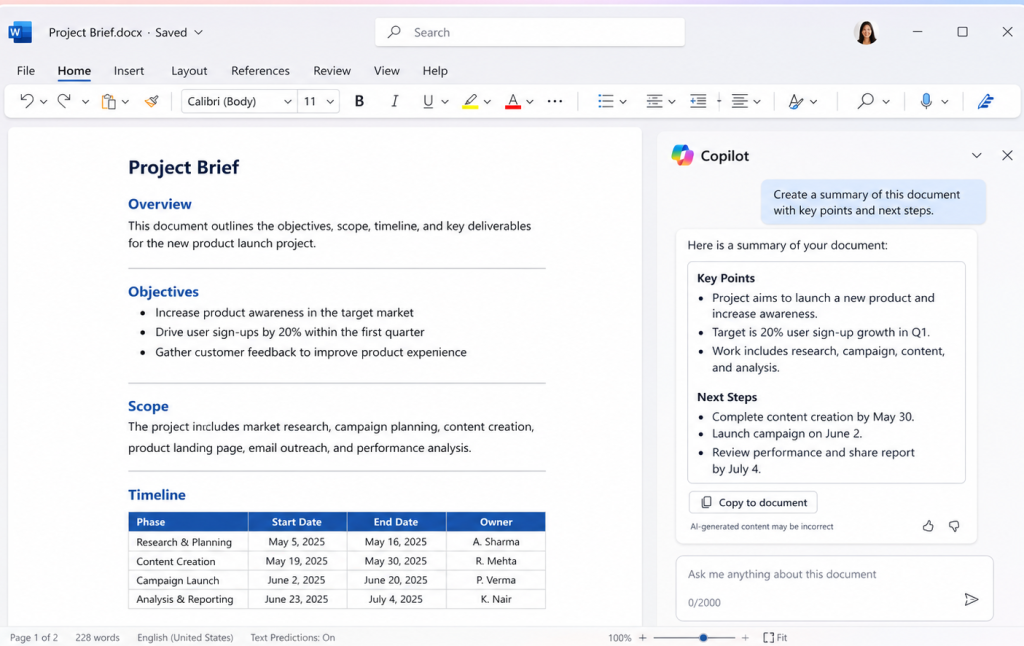
Copilot gives you a starting draft. You should then edit the draft, add missing context, remove weak claims, and check whether the document matches your audience.
Use Copilot for:
- Turning rough notes into complete paragraphs.
- Rewriting unclear sections in simpler language.
- Creating outlines before writing a full document.
- Summarizing long documents for quick review.
- Changing tone from casual to professional.
Document drafting is one of the best uses for Microsoft Copilot because it helps you avoid the blank-page problem. It gives you a structure to improve instead of forcing you to build everything from scratch.
How Does Microsoft Copilot Help With Excel?
Copilot helps users work with spreadsheets using plain-English prompts. It helps explain trends, suggest formulas, identify unusual values, summarize tables, and create chart ideas.
Useful Excel prompts include:
- “Explain the main trend in this table in three complete sentences.”
- “Identify the top five changes compared with last month.”
- “Suggest a formula to calculate month-over-month growth.”
- “Find unusual values in this data and explain why they stand out.”
- “Write a short business summary based on this table.”
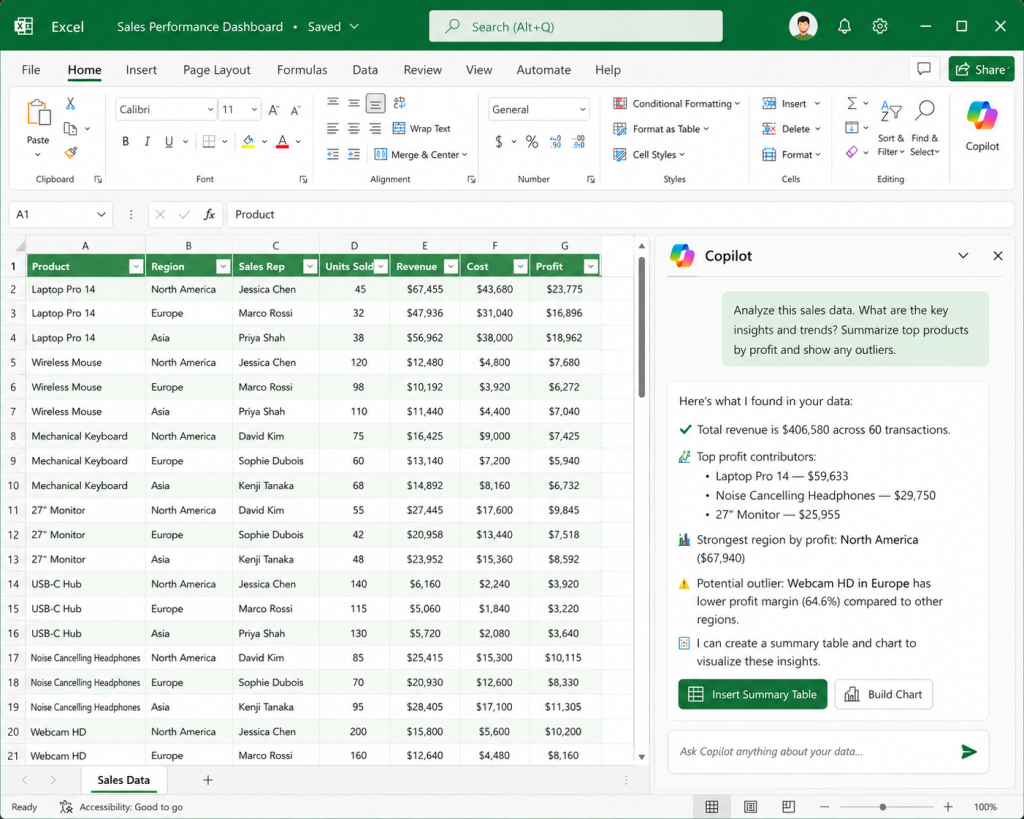
Copilot helps business users understand spreadsheet data faster. It also helps experienced users reduce routine analysis work. Still, you should check formulas, filters, source columns, blank values, and date ranges before using the output in a report.
Spreadsheet review is one of the best ways to use Microsoft Copilot when you work with recurring reports, sales data, campaign performance, budgets, or operational dashboards.
How Does Microsoft Copilot Help With PowerPoint?
Copilot helps create presentation structure from notes, documents, or prompts. It is useful when you need a first version of a client deck, a training outline, a project update, or a leadership presentation.
A good prompt is:
“Create a seven-slide presentation for a quarterly business review. Include an agenda, performance summary, key wins, risks, customer insights, next-quarter priorities, and a closing slide.”
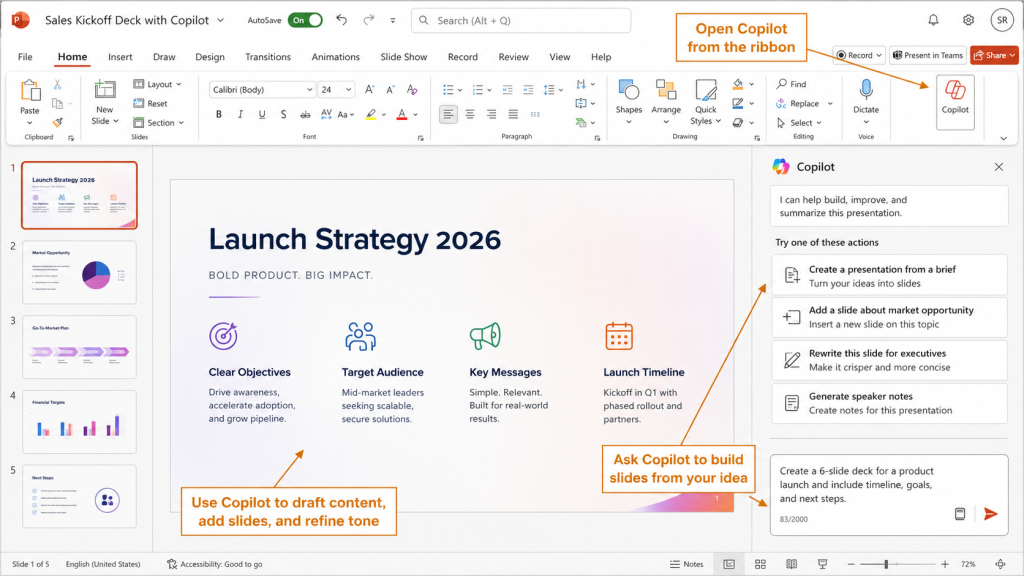
After Copilot creates the structure, you should refine the story. Make every slide title specific. Replace generic points with real data. Remove any slide that does not support the main message.
Presentation planning is one of the best uses for Microsoft Copilot because it helps you turn scattered notes into a logical slide flow. The final deck still needs your data, examples, and business judgment.
How Does Microsoft Copilot Help With Browser-Based Work?
Microsoft Copilot is also useful for browser-based work in Edge. It helps summarize web pages, answer questions about page content, and support quick research. This is helpful when you read long articles, competitor pages, documentation, policy pages, or reports.
For example, you might ask:
“Summarize this page in five bullets. Then list the three points most relevant for a marketing manager.”
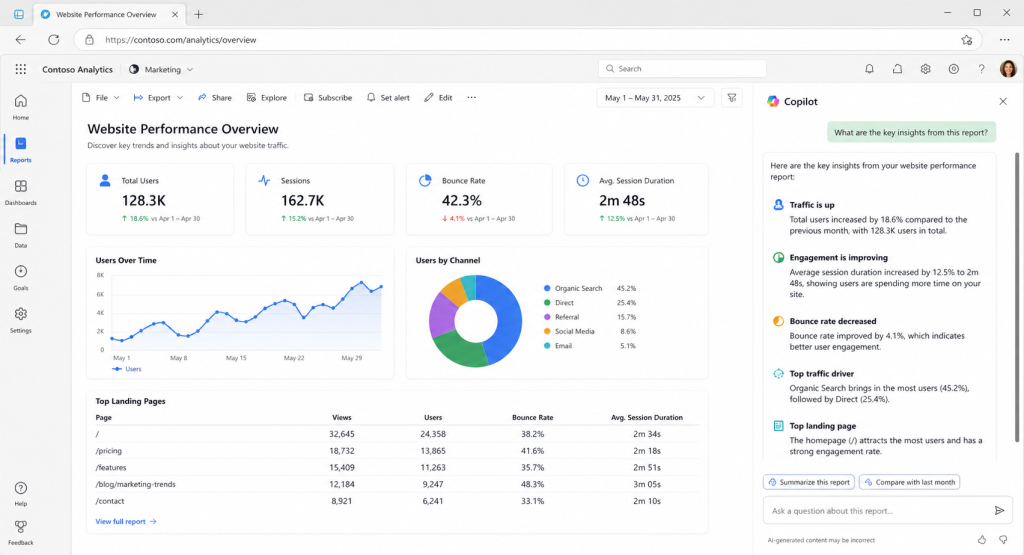
This prompt works because it gives Copilot a clear format and a clear audience. You should still open the original source and check important details before using the information.
Browser-based research is one of the best ways to use Microsoft Copilot when you need to understand information quickly and turn it into notes, summaries, or talking points.
What Makes a Good Microsoft Copilot Prompt?
A good Copilot prompt gives enough information for the tool to understand the task. It should include the context, task, format, tone, and limits.
Use this prompt structure:
- State the context clearly.
- Explain the exact task.
- Mention the output format.
- Define the tone.
- Add any limits or rules.
Example:
“I am preparing an update for my manager. Summarize these notes into five complete sentences. Include progress, blockers, and next steps. Use a clear and professional tone. Do not add information that is not in the notes.”
This prompt works because it tells the Copilot what to write, who the audience is, how long the answer should be, and what to avoid.
Best Ways to Use Microsoft Copilot at Work
The best ways to use Microsoft Copilot at work are the ones tied to real tasks you already do every day. Start with simple workflows before using it for larger projects.
Use Microsoft Copilot to:
- Summarize long email threads before replying.
- Draft professional emails from short instructions.
- Turn meeting transcripts into action items.
- Create project updates from rough notes.
- Rewrite unclear paragraphs in simpler language.
- Analyze spreadsheet trends and outliers.
- Suggest formulas for common Excel tasks.
- Create presentation outlines from documents.
- Summarize web pages for faster research.
- Prepare talking points before meetings.
This approach keeps Copilot practical. You get the most value when you use Microsoft Copilot to reduce repetitive work, organize information, and create stronger first drafts.
Best Practices for Using Microsoft Copilot at Work
You will get better results from Copilot when you use it with a clear workflow.
Follow these best practices:
- Start with one daily task that takes too much time.
- Write prompts with context, format, tone, and limits.
- Ask for complete sentences when you plan to reuse the output.
- Review facts, names, numbers, dates, and source material.
- Use Copilot for drafts, summaries, and structure.
- Leave the final judgment to the human reviewer.
- Save strong prompts as templates for repeated tasks.
- Avoid entering sensitive information unless your organization allows it.
The best uses for Microsoft Copilot are practical, repeatable, and easy to review. Use it where it improves speed, clarity, and organization without removing human judgment.
Conclusion
Microsoft Copilot is most useful when you apply it to daily office work that repeats often. Use it for emails, meetings, documents, spreadsheets, presentations, and browser-based research. The value comes from faster first drafts, clearer summaries, better organization, and less manual work.
Start with one task you do every day. Write a clear prompt, review the result, and improve the prompt over time. Copilot works best when you combine AI speed with human review.
Meta description: Learn how to use Microsoft Copilot for daily office work with the best uses, practical prompts, and examples for emails, meetings, Excel, and more.